Finding your mobile hotspot network security key is essential for guaranteeing secure connections. Depending on your device, the process can vary slightly. You’ll need to access specific settings to retrieve this key efficiently. Whether you’re using Android, iOS, Windows, or MacOS, each platform has its own method. Let’s explore the steps to locate your security key and guarantee your mobile hotspot remains protected.
Key Takeaways
- On Android, go to Settings > Network & internet > Hotspot & tethering to find your Hotspot password or Security key.
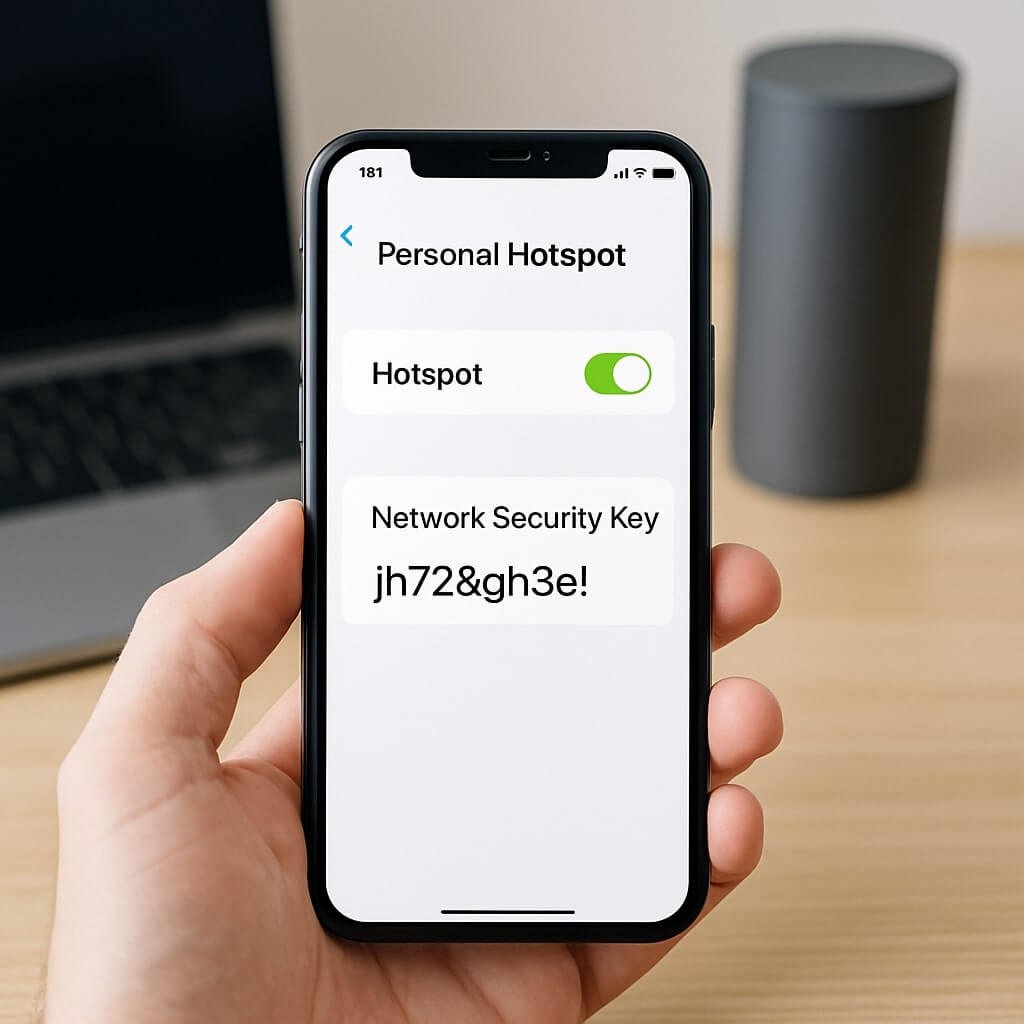
- For iOS, open Settings > Personal Hotspot to view or change your Wi-Fi Password as the network security key.
- On Mac, access Keychain Access, search for the hotspot name, and check “Show password” to reveal the security key.
- Use the mobile app for your hotspot device to navigate to Settings > Wi-Fi or Hotspot for easy access to the security key.
- Regularly update your network security key to enhance protection against unauthorized access and maintain network integrity.
Understanding Mobile Hotspots
Understanding mobile hotspots is essential, especially when you need to connect multiple devices to the internet on the go. A mobile hotspot allows you to share a cellular data connection, enabling laptops, tablets, and smartphones to access the internet simultaneously.
The mobile hotspot benefits include flexibility, portability, and the ability to stay connected in areas lacking Wi-Fi. However, you may face hotspot connectivity challenges, such as signal strength limitations and potential data throttling.
To optimize your hotspot experience, guarantee you’re in an area with strong cellular coverage and monitor your data usage to avoid exceeding your plan’s limits. Being aware of these factors will help you maximize the effectiveness of your mobile hotspot while minimizing connectivity issues.
Accessing Your Hotspot Settings
To manage your mobile hotspot effectively, you’ll need to access its settings. This is vital for configuring your hotspot connection and making certain your security settings are ideal.
Follow these steps:
- Navigate to your device’s settings menu.
- Select the “Network” or “Connections” option.
- Locate and tap on “Mobile Hotspot” or “Tethering.”
Once you’re in the hotspot settings, you can adjust your security protocols, change the network name, and set or update your password.
In the hotspot settings, you can enhance security by adjusting protocols, changing the network name, and updating your password.
Always use WPA2 or WPA3 for stronger security. Regularly reviewing these settings helps protect your data and enhances your mobile hotspot’s reliability.
Finding Your Network Security Key on Android Devices
When you need to connect a device to your mobile hotspot, locating your network security key on an Android device is straightforward.
First, open the Settings app on your Android. Scroll down and select “Network & internet,” then tap on “Hotspot & tethering.”
Next, choose “Wi-Fi hotspot” and look for the “Hotspot password” or “Security key” section. Your mobile hotspot’s security key will be displayed here.
If you want to enhance security measures, consider changing the default password to something more secure. Just tap the password field to edit it. Remember to save any changes you make.
Now, you can easily share your mobile hotspot with trusted devices using the correct security key.
Locating Your Network Security Key on Ios Devices
If you’re using an iOS device and need to find your mobile hotspot network security key, the process is simple and efficient.
Here’s how to locate it:
- Open the Settings app on your iOS device.
- Tap on Personal Hotspot to access the hotspot settings.
- The Wi-Fi Password displayed here is your network security key.
This method guarantees you’re adhering to iOS security measures while effectively managing your passwords.
If you ever forget the key, you can easily change it in the same menu, enhancing your device’s password management.
Remember to keep your network security key private to maintain the integrity of your hotspot connection.
Checking Your Hotspot Security Key on Windows
To check your hotspot security key on Windows, start by accessing the Network Settings.
From there, you can easily locate the security key and change your hotspot password if needed.
This process guarantees that your connection remains secure and up-to-date.
Access Network Settings
Accessing your network settings on Windows is straightforward and only takes a few steps. First, click on the Start menu and select “Settings.” From there, navigate to “Network & Internet.” This section contains all your network configurations.
To guarantee you’re on the right path, follow these tips:
- Select the appropriate network: Choose “Mobile hotspot” to view the settings for your hotspot.
- Check the connection type: Make sure you’re looking at the right type of connection, such as Wi-Fi or Ethernet.
- Review network properties: This area shows your network’s security settings and configurations.
Following these steps helps you access the necessary settings to manage your mobile hotspot effectively.
Locate Security Key
Finding your mobile hotspot’s security key on Windows is a simple process that requires just a few clicks. First, open the Network & Internet settings. Next, click on “Mobile hotspot.” Here, you’ll see your security key displayed, usually categorized under security key types like WPA2.
To help with password management, you can record your security key in a secure location. Below is a table that illustrates common security types for your reference:
| Security Type | Description |
|---|---|
| WEP | Weak, outdated security |
| WPA | Better than WEP |
| WPA2 | Strong, standard security |
| WPA3 | Latest, enhanced security |
| Open | No password required |
Make sure to keep your security key safe!
Change Hotspot Password
Once you’ve located your mobile hotspot’s security key, you might want to change the password for better security.
Changing passwords regularly is one of the key security best practices, helping protect your data from unauthorized access.
Here’s how to do it on Windows:
- Open the “Settings” app and navigate to “Network & Internet.”
- Select “Mobile Hotspot” and click on “Edit.”
- Enter a new password, ensuring it’s strong and unique.
Make sure your new password meets the following criteria:
- At least 12 characters long
- A mix of uppercase, lowercase, numbers, and symbols
- Avoid using easily guessed information, like birthdays or names
Discovering Your Key on MacOS
To discover your mobile hotspot network security key on MacOS, you’ll first access Network Preferences to locate your connection.
Next, you can securely view your passwords using Keychain Access to find the specific key.
This process guarantees you retrieve the necessary information efficiently.
Accessing Network Preferences
If you’re using macOS and need to find your mobile hotspot network security key, accessing the Network Preferences is a straightforward process. Here’s how you can do it:
- Click on the Apple menu and select “System Preferences.”
- Choose “Network” to open your network settings.
- Select your active mobile data connection from the list on the left.
Once you’re in the Network Preferences, you’ll see details about your mobile connection.
This is where you can manage settings and troubleshoot issues related to your mobile hotspot.
Viewing Passwords Securely
After accessing your Network Preferences, you can securely view your mobile hotspot network security key.
macOS provides a built-in utility called Keychain Access, which stores passwords and security keys. To find your key, open Keychain Access from the Applications folder or via Spotlight.
In the search bar, type your hotspot’s name to locate the associated entry. Once you find it, double-click to open. Check the box labeled “Show password.”
You’ll need to enter your Mac’s administrator credentials to reveal the key. This method enhances password management by ensuring secure sharing and easy retrieval of your network security information.
Always remember to safeguard your credentials and manage access to your Keychain for ideal security.
Using Keychain Access
While managing your network connections, using Keychain Access on macOS simplifies the process of discovering your mobile hotspot network security key.
This built-in tool streamlines keychain management and enhances password security. To find your key, follow these steps:
- Open Keychain Access from the Applications > Utilities folder.
- In the search bar, type the name of your mobile hotspot.
- Double-click the entry to view details and check “Show password”; enter your Mac’s administrator password when prompted.
This method not only provides easy access to your mobile hotspot security key but also guarantees that your sensitive information remains secure within the macOS environment.
Remember to keep your Mac updated to maintain peak password security.
Using the Mobile App to Retrieve Your Security Key
How can you quickly access your mobile hotspot’s network security key?
Start by opening the mobile app associated with your hotspot device. Navigate to the user interface, where you’ll find various mobile app features.
Look for a section labeled “Settings” or “Network.” Once you’re there, select the option for “Wi-Fi” or “Hotspot.”
Your network security key should be displayed prominently, often next to “Password” or “Security Key.” If you see an option to view the key in plain text, enable it for easy reading.
Resetting Your Hotspot and Setting a New Key
Reset your mobile hotspot to establish a fresh network security key if you suspect the current one has been compromised or simply want to enhance your security.
Reset your mobile hotspot to create a new security key for enhanced protection against potential compromises.
You can use various reset options depending on your device. Follow these steps for effective security measures:
- Access your hotspot settings via the mobile app or web interface.
- Choose the reset option to revert all settings to default, including the security key.
- Once reset, locate the option to create a new network security key.
After completing these steps, remember to connect your devices using the new key.
Regularly updating your security key is a smart practice to protect your data and maintain network integrity.
Tips for Keeping Your Network Security Key Safe
To guarantee your network security key remains safe, implement a few best practices that minimize the risk of unauthorized access.
First, use a strong, unique password that combines letters, numbers, and symbols, making it difficult for potential intruders to guess. Regularly update your key, especially if you suspect it’s been compromised.
Utilize password management tools to safely store and manage your keys while ensuring you don’t reuse passwords across different accounts.
Enable two-factor authentication when available, adding an extra layer of security.
Finally, avoid sharing your network security key openly, and be cautious about who you grant access to your mobile hotspot.
Conclusion
In conclusion, finding your mobile hotspot network security key is straightforward across various devices. Whether you’re using Android, iOS, Windows, or MacOS, simply follow the outlined steps to access your hotspot settings and retrieve your key. If needed, you can always reset your hotspot and create a new security key for enhanced security. Remember to keep your network security key safe to protect your connections from unauthorized access and guarantee a reliable internet experience.