
Understanding network security keys is essential for protecting your wireless network. These keys serve as digital locks, preventing unauthorized access to your sensitive information. In this guide, you’ll learn how to identify, set up, and manage these keys effectively. You’ll also discover the best practices to enhance your network’s security. Let’s get started on ensuring your network remains secure and resilient against potential threats.
Key Takeaways
- Network security keys act as digital locks, protecting wireless networks from unauthorized access through complex passwords.
- WPA2 and WPA3 are the recommended security protocols, with WPA3 offering improved encryption and reduced vulnerabilities.
- Regular updates of network security keys enhance protection against cyber threats and unauthorized access.
- Strong passwords should be at least 12 characters long, incorporating letters, numbers, and symbols to boost security.
- Proper management includes documenting keys’ purposes and expiration dates while using secure methods for sharing them.
What Are Network Security Keys?
A network security key acts as a digital lock, protecting your wireless network from unauthorized access. This key can be a password or a series of characters that authenticate devices wishing to connect.
Effective key management is vital; it guarantees that only authorized users gain access while keeping intruders at bay. You should regularly update your network security key to minimize risks associated with potential breaches.
Additionally, employing complex keys—combining letters, numbers, and symbols—can enhance your network’s security. Be mindful of where and how you share your key, as improper distribution can compromise your network.
Ultimately, understanding network security keys is essential for safeguarding your digital environment and maintaining the integrity of your wireless connections.
The Importance of Network Security Keys
Network security keys play a pivotal role in protecting your wireless environment. They serve as the first line of defense against unauthorized access, ensuring only trusted devices connect to your network.
By encrypting your data, these keys safeguard sensitive information from potential cyber threats. Without a robust network security key, your data protection efforts could be severely compromised, leaving you vulnerable to hackers who may exploit weaknesses in your system.
Robust network security keys are essential; without them, sensitive data remains exposed to potential cyber threats and hacker exploitation.
It’s vital to choose complex keys that are difficult to guess, enhancing your overall network security. Regularly updating these keys further strengthens your defenses, minimizing risks associated with data breaches.
Prioritizing network security keys is essential for maintaining a safe and secure online experience.
Types of Network Security Keys
When evaluating network security keys, you’ll encounter various types, including WPA2 and WPA3, each offering different levels of protection.
It’s also essential to understand open networks, which lack encryption and pose significant security risks.
Additionally, recognizing the vulnerabilities of WEP can help you prioritize stronger security measures for your network.
WPA2 Vs WPA3
Two major wireless security protocols, WPA2 and WPA3, markedly enhance the protection of your network. WPA2 has known vulnerabilities, such as the KRACK attack, which can compromise your data. In contrast, WPA3 offers significant advantages, including improved encryption and protection against brute-force attacks.
Here’s a comparison table to illustrate key differences:
| Feature | WPA2 | WPA3 |
|---|---|---|
| Encryption Type | AES | AES with GCMP |
| Security Protocol | PSK (Pre-Shared Key) | SAE (Simultaneous Authentication of Equals) |
| Vulnerability Risk | Higher | Lower |
| Device Compatibility | Widely supported | Increasingly supported |
| User Experience | Less secure | More user-friendly |
Choosing WPA3 will help secure your network against emerging threats.
Open Networks Explained
Open networks, often referred to as unsecured networks, are accessible without any authentication or encryption, allowing anyone within range to connect freely.
While they can be convenient, you should be aware of the open network risks and public network dangers associated with such connections.
- Data Interception: Your sensitive information can be easily intercepted by malicious users.
- Malware Distribution: Attackers may use open networks to distribute malware to connected devices.
- Identity Theft: Without encryption, your personal data is vulnerable to theft.
To protect yourself, avoid accessing sensitive information while connected to these networks.
If you must use them, consider utilizing a Virtual Private Network (VPN) to add an extra layer of security.
WEP Vulnerabilities Identified
Although WEP (Wired Equivalent Privacy) was once a common standard for securing wireless networks, notable vulnerabilities have emerged that compromise its effectiveness.
WEP encryption relies on static keys, making it susceptible to various WEP weaknesses. Attackers can exploit these weaknesses through techniques like packet sniffing and the statistical analysis of encrypted traffic, leading to unauthorized access.
Common WEP attacks include the FMS attack and the Chopchop attack, which can decrypt WEP traffic in a matter of minutes.
Given these vulnerabilities, it’s essential to evaluate WEP alternatives, such as WPA (Wi-Fi Protected Access) or WPA2, which offer enhanced security features and dynamic key management.
Shifting to these alternatives can greatly improve your network’s security posture.
How to Find Your Network Security Key
How can you easily locate your network security key? Finding your network security key is essential for maintaining your network security. Here are three methods for key retrieval:
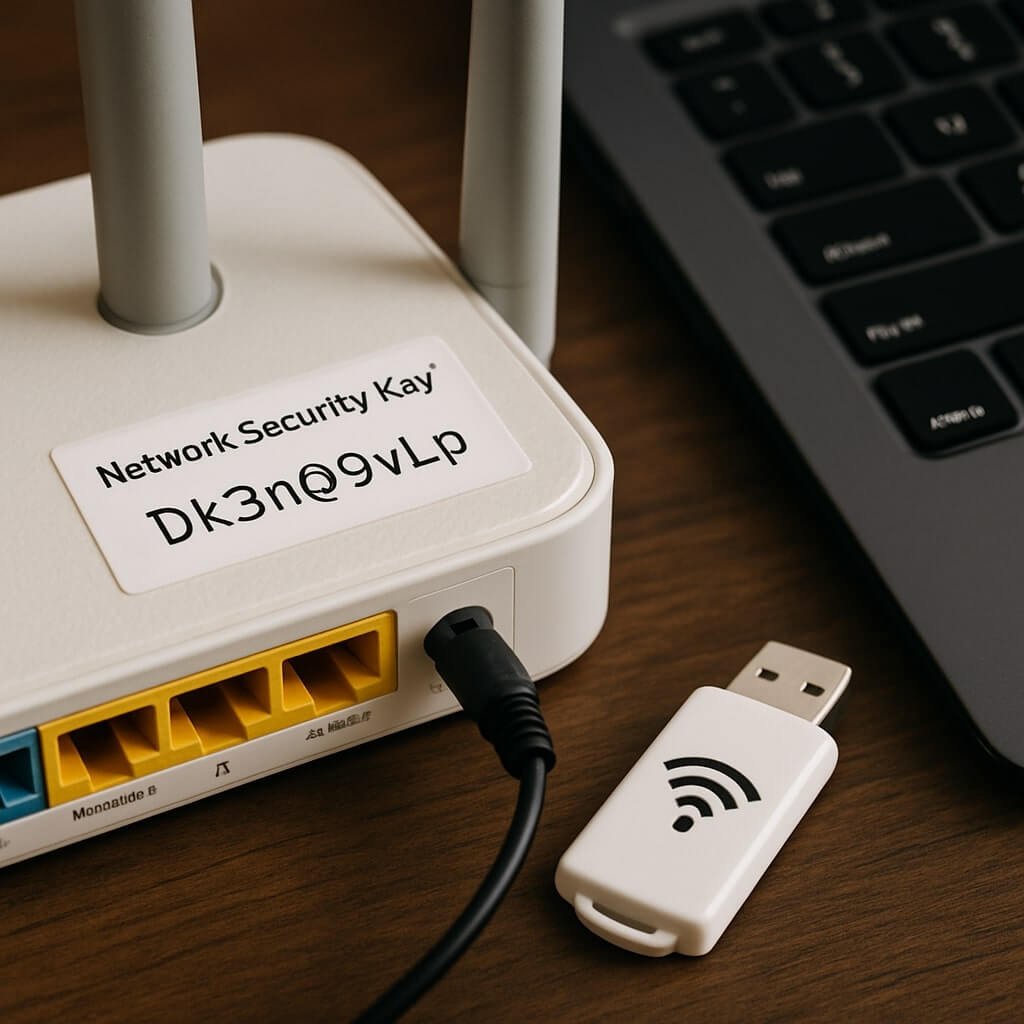
- Check your router: Look for a sticker on the back or bottom of your router; it often has the default network security key.
- Access your device settings: On Windows, navigate to ‘Network & Internet’ settings, find your Wi-Fi network, and view the properties. On macOS, open ‘Keychain Access’ and search for your network name.
- Use the command prompt: For Windows users, open the command prompt and type `netsh wlan show profiles`, then `netsh wlan show profile name=”NetworkName” key=clear` to reveal the key.
Utilizing these methods can streamline your key retrieval process quickly.
Setting Up a Network Security Key
To set up a network security key, you’ll need to start by choosing a strong password that combines letters, numbers, and symbols.
Next, configure your router settings to implement this key effectively.
Finally, make certain all your devices connect securely using the new security key to maintain network integrity.
Choosing Strong Passwords
When setting up a network security key, choosing a strong password is essential for protecting your network from unauthorized access. A weak password can leave your network vulnerable, so focus on these aspects:
- Password Length: Aim for at least 12 characters to enhance security.
- Password Complexity: Use a mix of uppercase letters, lowercase letters, numbers, and special characters.
- Avoid Common Words: Steer clear of easily guessable passwords, such as “password123” or personal information.
Configuring Router Settings
Configuring your router settings to set up a network security key is essential for safeguarding your home or office network. Start by accessing the router interface through your web browser, using the device’s IP address. If you’re unsure, check the default settings in the user manual or on the manufacturer’s website. Once you’re logged in, look for the wireless security section.
| Step | Action | Notes |
|---|---|---|
| 1 | Access router interface | Use IP address (e.g., 192.168.1.1) |
| 2 | Navigate to wireless settings | Find security options |
| 3 | Select WPA2/WPA3 | Best for security |
| 4 | Enter new security key | Create a strong password |
After configuring, save the changes and reboot your router.
Connecting Devices Securely
As you prepare to connect devices securely to your network, ensuring that you use the correct network security key is essential.
This key not only facilitates secure connections but also plays a vital role in device authentication.
Follow these steps to connect your devices effectively:
- Locate your network security key: Check your router settings or documentation.
- Input the key correctly: Make sure you enter the key exactly as it appears, including case sensitivity.
- Test the connection: After entering the key, confirm that your device connects without issues.
Managing Network Security Keys
Though managing network security keys may seem intimidating, it’s crucial for maintaining a secure digital environment. Start by establishing a key management strategy that outlines how you’ll create, store, and distribute keys.
Utilize strong security protocols, such as WPA3, to enhance your network’s defenses. Regularly update your keys to mitigate risks from unauthorized access and guarantee that old keys are revoked immediately after use.
Document each key’s purpose and expiration date to maintain control over access. When sharing keys, use secure methods, avoiding email or unencrypted messages.
Finally, educate users on the importance of key management—this can greatly reduce human error, which is often the weakest link in network security. Consistent management keeps your network robust and secure.
Troubleshooting Common Issues
Even with effective management practices in place, issues with network security keys can arise, leading to connectivity problems or unauthorized access.
Here are some common troubleshooting steps you can take:
- Check for network adapter issues: Make certain your adapter is functioning properly and updated.
- Verify the password: An incorrect password is a common source of connectivity problems. Double-check that you’re entering it correctly.
- Restart your devices: Sometimes, a simple restart of your router and connected devices can resolve connectivity issues.
Best Practices for Network Security
To guarantee robust network security, implementing best practices is essential for safeguarding your sensitive data and maintaining connectivity.
Start by conducting regular network audits to identify vulnerabilities and ascertain your systems are updated. This proactive approach helps you mitigate risks before they escalate.
Next, invest in user training to educate employees about security protocols, phishing scams, and the importance of strong passwords.
Ascertain everyone understands their role in protecting the network.
Additionally, segment your network to limit access to sensitive information and use encryption for data transmission.
Implementing multi-factor authentication adds another layer of security.
Conclusion
In summary, understanding and managing your network security keys is vital for protecting your wireless network. By selecting a strong, complex password and regularly updating it, you greatly enhance your network’s security. Utilize secure protocols like WPA3 and keep proper documentation to maintain control over access. If you encounter issues, refer to troubleshooting steps to guarantee peak performance. Prioritize these best practices to safeguard your sensitive information and enjoy a secure online experience.