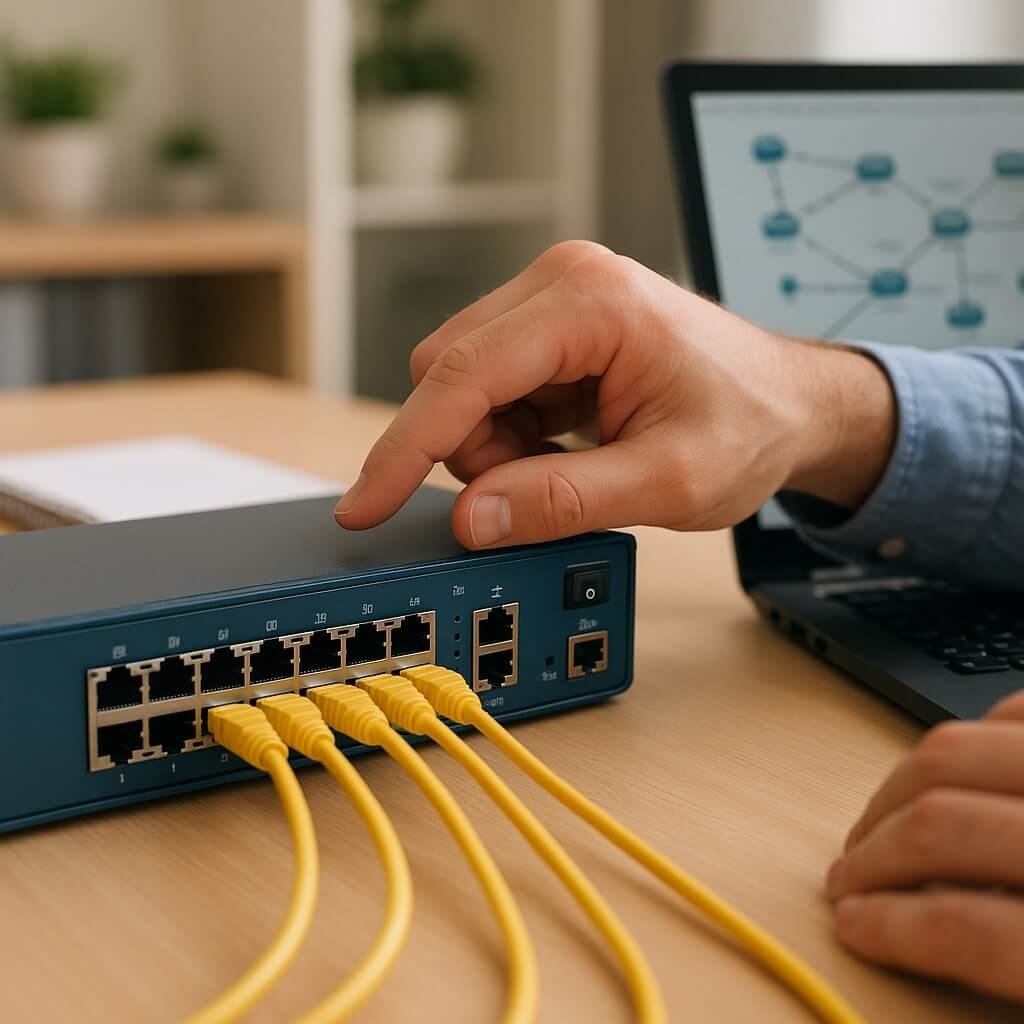
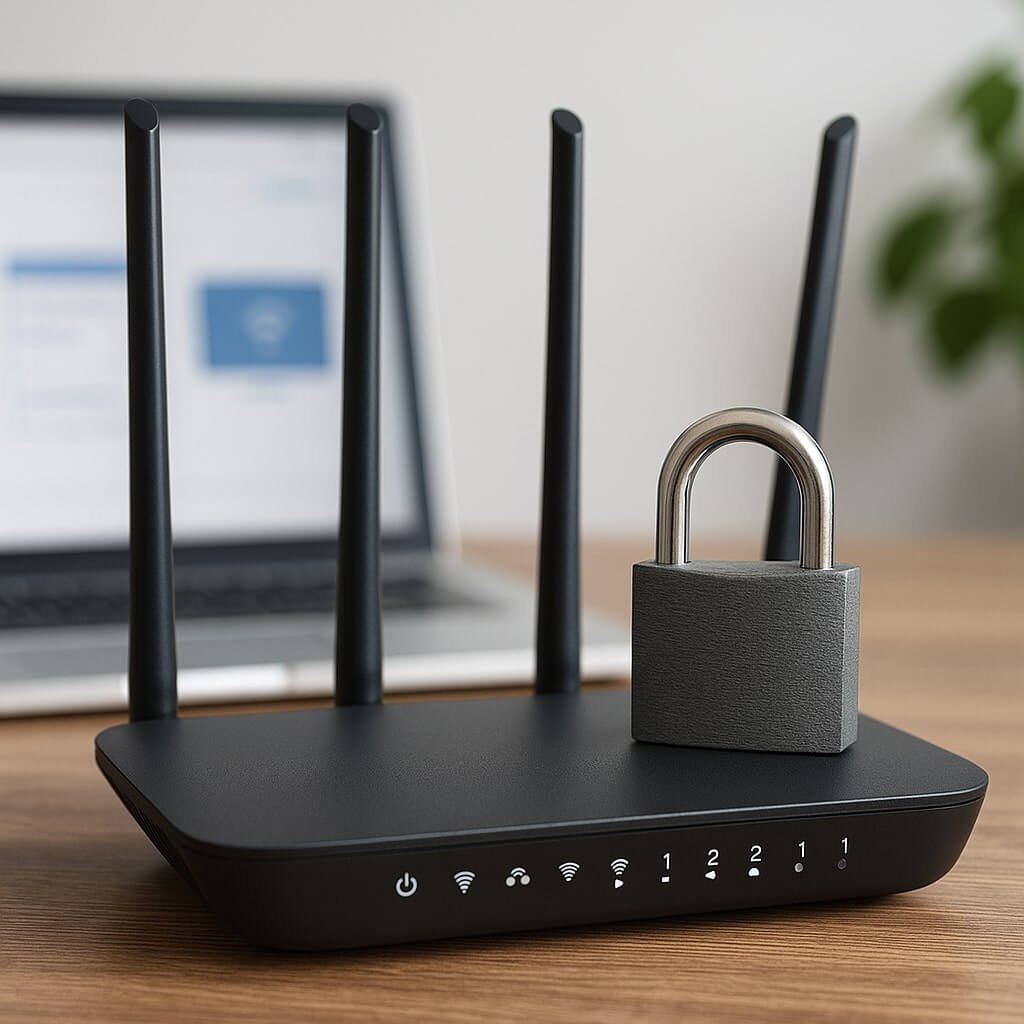
When it comes to securing your wireless network, following essential steps is vital for safeguarding your data. Start by changing default credentials and enabling robust encryption like WPA3. It’s also wise to take into account features like guest networks and MAC address filtering. Each measure contributes to a more secure environment, but overlooking even one could expose you to vulnerabilities. What other adjustments can you make to enhance your network’s defenses?
Key Takeaways
- Change default usernames and passwords to strong, unique combinations that include upper/lower-case letters, numbers, and symbols.
- Enable WPA3 encryption for enhanced security and disable SSID broadcasting to limit network visibility.
- Set up a guest network to isolate guest access from your primary network, ensuring sensitive data remains protected.
- Regularly update router firmware and monitor connected devices to identify and remove unauthorized access attempts.
- Disable WPS and regularly review network security settings to maintain a secure wireless environment.
Change the Default Username and Password
Although it might seem convenient to keep the default username and password for your wireless network, doing so poses important security risks. Default credentials are often well-known and easily accessible to cybercriminals, leaving your network vulnerable to unauthorized access.
By not changing these settings, you compromise your account security and invite potential breaches.
Failing to update default settings jeopardizes your security and opens the door to potential breaches.
To enhance your network’s protection, immediately create a strong, unique username and password. Opt for a combination of upper and lower-case letters, numbers, and special characters, avoiding easily guessable information like birthdays or common words.
Regularly updating your credentials further strengthens your defenses. Remember, taking this simple yet essential step can greatly mitigate the risk of unauthorized intrusions and safeguard your sensitive information.
Enable WPA3 Encryption
One of the most effective steps you can take to secure your wireless network is enabling WPA3 encryption.
This advanced security protocol offers several WPA3 advantages that enhance your network’s protection.
To verify you’re set up correctly, follow these steps:
- Check your router’s compatibility – Confirm your device supports WPA3.
- Access router settings – Log into your router’s admin interface.
- Select WPA3 – Navigate to the wireless security settings and choose WPA3.
- Save changes – Apply the settings and restart your router if necessary.
Disable SSID Broadcasting
Disabling SSID broadcasting is an essential step in enhancing your wireless network’s security. The SSID, or Service Set Identifier, plays a significant role in identifying your network. By broadcasting it, you’re inadvertently exposing your network to potential threats.
Broadcasting risks include unauthorized access attempts from nearby devices that can detect your network even if they aren’t connected. When you disable SSID broadcasting, your network becomes less visible, making it harder for attackers to target you.
However, keep in mind that this isn’t a foolproof solution; determined individuals might still discover your network through other means. Ultimately, while disabling SSID broadcasting won’t replace strong encryption methods, it adds an extra layer of protection to your wireless network.
Set Up a Guest Network
After taking steps like disabling SSID broadcasting to enhance your network’s security, consider setting up a guest network.
Enhancing network security? Don’t forget to set up a guest network to protect your primary connections.
This isolates guest access from your primary network, protecting sensitive data and devices.
Follow these steps to configure it effectively:
- Access Router Settings: Log into your router’s admin interface.
- Enable Guest Network: Locate the guest network option and activate it.
- Configure Network Isolation: Confirm that guest access is isolated from your main network to prevent unauthorized access to internal resources.
- Set Passwords: Create a strong password for your guest network to further enhance security.
Update Router Firmware Regularly
Keep your wireless network secure by updating your router’s firmware regularly. Firmware updates are essential for maintaining peak router performance and addressing security vulnerabilities.
Manufacturers frequently release updates that patch known exploits, enhance features, and improve overall functionality. Failure to update not only leaves your network exposed to potential intruders but may also degrade performance over time.
To confirm you’re running the latest firmware, check your router’s settings interface or the manufacturer’s website for available updates. Most routers offer an auto-update feature, allowing you to schedule updates without manual intervention.
Use a Strong Wi-Fi Password
While updating your router’s firmware is essential for maintaining security, the strength of your Wi-Fi password plays an equally important role in protecting your network. A strong password enhances password complexity, making it harder for unauthorized users to gain access.
To guarantee your Wi-Fi password is effective, consider these guidelines:
- Use at least 12 characters, combining letters, numbers, and symbols.
- Avoid easily guessable information, like birthdays or names.
- Change your password regularly to enhance password management.
- Utilize a password manager to store and generate strong passwords.
Enable MAC Address Filtering
Enabling MAC address filtering can considerably enhance your wireless network’s security by allowing only specified devices to connect. This method involves whitelisting MAC addresses, creating a controlled access environment.
However, it’s essential to understand that while MAC address filtering adds an extra layer, it’s not foolproof against MAC address spoofing, where unauthorized users can mimic a whitelisted MAC address to gain access.
To mitigate this risk, regularly monitor connected devices for anomalies. Device tracking can further assist in identifying unauthorized access attempts by logging the MAC addresses of all devices that connect to your network.
Disable WPS (Wi-Fi Protected Setup)
After implementing MAC address filtering, the next step in strengthening your wireless network’s security is to disable WPS (Wi-Fi Protected Setup).
While WPS offers convenience for connecting devices, it’s fraught with WPS vulnerabilities that can be exploited by attackers. To enhance your network’s security, follow these steps:
- Access your router’s settings through a web browser.
- Locate the WPS settings, usually found under the wireless or security menu.
- Toggle the WPS option to “disabled.”
- Save your changes and restart the router if necessary.
Consider using WPS alternatives like manual configuration or QR code scanning to connect devices securely.
Monitor Connected Devices
Regularly monitoring connected devices is essential for maintaining a secure wireless network. By implementing effective network monitoring, you can identify unauthorized devices that may have breached your network.
Start by using network management tools to create a list of all connected devices, ensuring you can recognize any new or unfamiliar entries. Check device details, such as MAC addresses and IP assignments, to verify their legitimacy.
Regular audits of connected devices will help you spot anomalies and assess device management protocols. Additionally, consider setting alerts for any unauthorized access attempts.
This proactive approach not only enhances your network security but also helps you maintain control over your digital environment, safeguarding sensitive information from potential threats.
Regularly Review Security Settings
Monitoring connected devices lays the groundwork for a robust security framework, but it’s equally important to routinely assess your network’s security settings.
Establishing an audit frequency helps guarantee your defenses remain effective. Here’s a security checklist to guide your review:
- Update Firmware: Regularly check for and install firmware updates for your router and connected devices.
- Change Passwords: Update default passwords and create strong, unique ones for all devices.
- Review Access Control: Ensure only authorized devices are connected; remove any unknown ones.
- Evaluate Encryption Protocols: Verify that WPA3 is in use, or at least WPA2, to secure your network.
Conclusion
By following these ten essential steps, you can greatly enhance your wireless network security. Changing default credentials and enabling WPA3 encryption lays a strong foundation, while disabling SSID broadcasting and setting up a guest network further protects your data. Regular firmware updates and monitoring connected devices help identify potential threats. Finally, disabling WPS and reviewing security settings frequently guarantees your network remains secure against evolving risks. Implementing these practices will keep your network safe and your data private.