
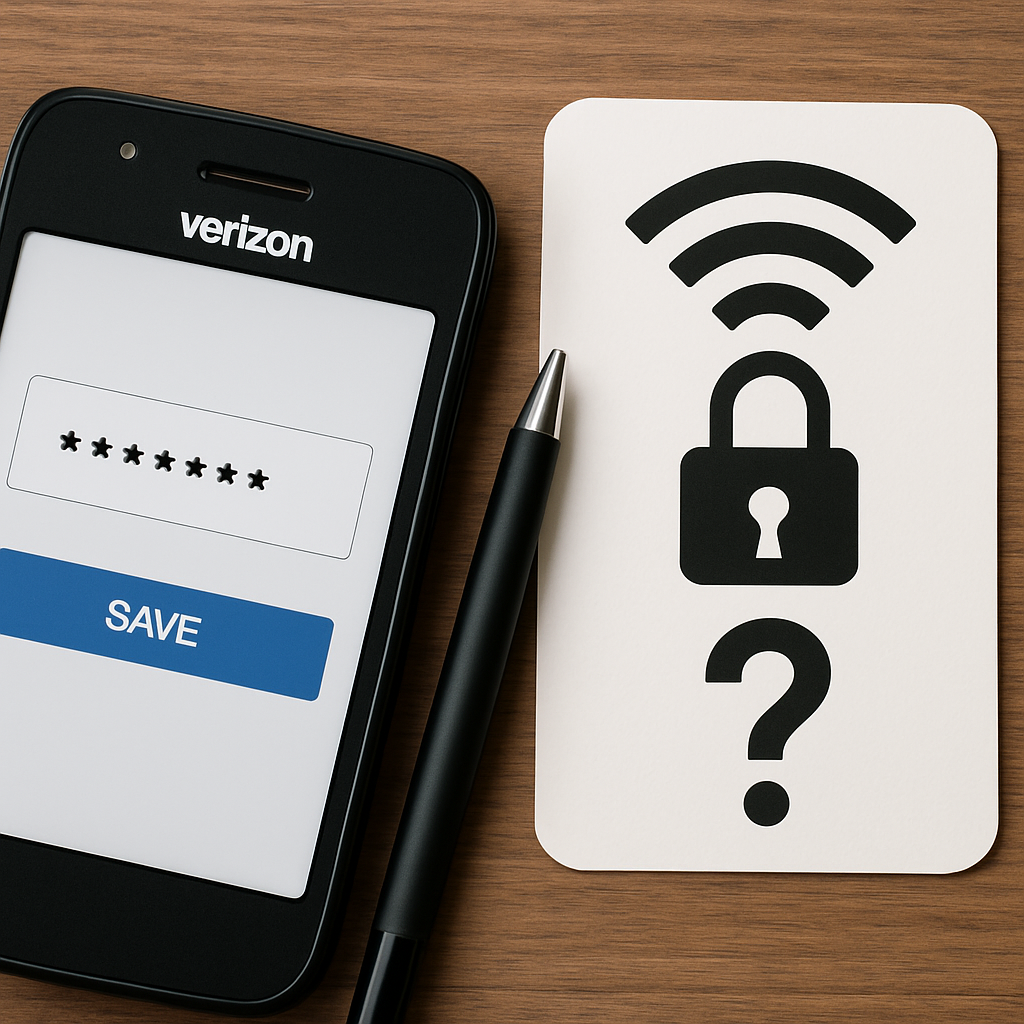
A Verizon Network Security Key is essential for protecting your wireless network from unauthorized access. It serves as a unique password that encrypts data transmissions, ensuring only authorized devices connect. You might find it on your router or in your Verizon account. Understanding its role and how to manage it effectively can greatly impact your network’s security. But what happens if you neglect to update it or fail to create a strong key?
Key Takeaways
- A Verizon Network Security Key encrypts data transmission, safeguarding communications from unauthorized access.
- It establishes access control measures, allowing only authorized devices to connect to the network.
- The key employs robust security protocols, ensuring the confidentiality and integrity of transmitted data.
- Regular updates to the security key address emerging threats, enhancing overall network security.
- Users can locate and change the security key via the router label, online account, or mobile app.
Understanding Network Security Keys
Network security keys serve as essential components in safeguarding your data and communications. They play a critical role in network encryption, ensuring that your information remains confidential and secure from unauthorized access.
When you connect to a network, these keys facilitate encrypted communication, transforming your data into unreadable formats for anyone without the proper permissions.
Key management is crucial in this process; it involves generating, distributing, and storing these security keys securely. Without effective key management, even the strongest encryption can be compromised.
Effective key management is vital for secure communication, as it safeguards encryption integrity and prevents unauthorized access.
Regularly updating keys and ensuring they’re only accessible to authorized users can greatly enhance your network’s security posture. By understanding these elements, you can better protect your sensitive information and maintain the integrity of your communications.
The Role of a Verizon Network Security Key
A Verizon Network Security Key plays an essential role in protecting your connection by encrypting data transmission, which prevents unauthorized access.
It also establishes access control measures, ensuring only authorized devices can connect to your network.
Protecting Your Connection
While you may rely on various security measures to protect your online activities, the Verizon Network Security Key plays a critical role in safeguarding your connection.
It employs robust security protocols to guarantee your data isn’t easily compromised. Here’s how it helps:
- Network Encryption: The key encrypts your data, making it unreadable to unauthorized users.
- Secure Access: It verifies devices connecting to your network, preventing unauthorized access.
- Consistent Updates: Verizon regularly updates its security protocols to address emerging threats.
Access Control Measures
Access control measures are crucial for maintaining the integrity and security of your network, and the Verizon Network Security Key serves as an important component in this framework.
This key enables you to restrict access to authorized users, establishing a robust line of defense against unauthorized intrusions. By implementing this security measure, you guarantee that only individuals with the correct credentials can connect to your network, thereby minimizing potential threats.
Additionally, the Verizon Network Security Key facilitates the management of user permissions, allowing you to tailor access control settings to meet your specific needs.
With this level of control, you can effectively safeguard sensitive data and maintain compliance with industry standards, reinforcing your overall network security strategy.
Enhancing Network Security
To enhance network security effectively, the Verizon Network Security Key plays a pivotal role in safeguarding your digital environment.
By addressing network vulnerabilities, this key guarantees that your connection remains protected against unauthorized access. Here’s how it contributes:
- Strong Authentication: It requires users to input a unique security key, minimizing the risk of breaches.
- Advanced Encryption Methods: The Verizon Network Security Key employs robust encryption methods, making it difficult for attackers to intercept data.
- Regular Updates: It’s regularly updated to counteract emerging threats and improve security measures.
How to Locate Your Verizon Network Security Key
To locate your Verizon Network Security Key, start by checking the label on your router, which often displays the key prominently.
Alternatively, you can access your Verizon online account or use the Verizon mobile app for a digital reference.
Each method provides a straightforward way to retrieve this essential information for securing your network.
Check Your Router Label
Locating your Verizon Network Security Key is a straightforward process that begins with checking your router label.
This label contains crucial router identification and label information that helps you find the key efficiently.
Follow these steps:
- Identify the Label: Look for a sticker on the back or bottom of your router where essential details are printed.
- Find the Security Key: The label often lists the Wi-Fi password as “Network Security Key” or “WPA Key.”
- Note Other Details: You may also see the default network name (SSID) and router model, which can be useful for troubleshooting.
Access Verizon Online Account
Accessing your Verizon online account is a reliable method for retrieving your Network Security Key. Start by logging into your Verizon account management portal using your credentials.
Once logged in, navigate to the “My Devices” or “Network” section, where you’ll find details about your network settings. Look for the option labeled “Network Security Key” or “Wi-Fi Password.” This key is essential for maintaining online account security and ensuring only authorized devices connect to your network.
If you encounter any issues, consider resetting your key directly from this portal, enhancing your network’s security. By using your Verizon online account, you streamline the process of managing your network credentials efficiently and securely.
Use Verizon Mobile App
For those who prefer mobile management, the Verizon Mobile App offers a convenient way to find your Network Security Key. To locate it, follow these steps:
- Open the Verizon App: Log in to your account using your credentials.
- Navigate to ‘Device’ Settings: Tap on the menu icon and select the device you want to manage.
- Access Network Security Settings: Look for the ‘Network Security’ section, where your key will be displayed.
Utilizing Verizon app features enhances your mobile security management experience, making it easy to retrieve sensitive information quickly.
This method not only saves time but also guarantees you’re securely connected to the network, reinforcing your overall digital safety.
Importance of a Strong Security Key
A strong security key serves as the first line of defense against unauthorized access to your Verizon network. By implementing a robust key, you greatly enhance your network’s integrity, safeguarding sensitive data from cyber threats.
The security key benefits include preventing unauthorized users from accessing your personal information and ensuring stable network performance. Strong key examples involve using a mix of uppercase and lowercase letters, numbers, and special characters, which create a complex password that’s hard to crack.
Regularly updating your security key further fortifies your defenses, making it even more difficult for intruders to breach your network. Prioritizing a strong security key is essential for maintaining a secure and reliable connection in today’s digital landscape.
Common Issues With Network Security Keys
You may encounter several common issues with your network security key that can disrupt your connectivity.
Forgetting the key or entering it incorrectly are frequent problems that can lead to frustration.
Additionally, understanding the key reset process is essential for regaining access to your network efficiently.
Forgotten Network Security Key
How often do users find themselves grappling with the issue of forgotten network security keys?
This common scenario can hinder your connectivity and productivity. Fortunately, there are effective recovery options to regain access.
Here are three steps to contemplate:
- Check Your Devices: Many devices save your network security keys in their settings. Look under Wi-Fi settings to retrieve forgotten credentials.
- Router Label: If you haven’t changed it, your default network security key is often printed on the router. Check the label for this information.
- Reset the Router: As a last resort, you can reset the router to factory settings, which will allow you to configure a new network security key.
Incorrect Key Entry
One of the most frequent issues users encounter with network security keys is incorrect key entry, which can lead to frustrating connectivity problems. When you input an incorrect password, your device will fail to authenticate, denying you security access to the network.
Common mistakes include typographical errors, such as mistaking similar characters like “0” (zero) for “O” (letter), or leaving spaces before or after the key. Additionally, using the wrong case can also result in an incorrect entry, as most security keys are case-sensitive.
To resolve this, double-check your key against the original. Ensuring accuracy during entry is essential for seamless network access and to prevent repeated lockouts due to incorrect password attempts.
Key Reset Process
Although resetting your network security key can resolve many access issues, users often encounter several common problems during the key reset process. Understanding these challenges and utilizing effective key reset methods can streamline your experience.
Here are some troubleshooting tips to take into account:
- Incompatible Devices: Verify your device is compatible with the new security key; outdated firmware can lead to connection issues.
- Network Configuration: Check your router settings to confirm that the key has been correctly updated and saved.
- Multiple Users: If multiple devices connect to the network, make sure all are updated with the new key to avoid confusion.
Changing Your Verizon Network Security Key
When you need to enhance your network’s security, changing your Verizon Network Security Key is an important step. Effective key management is vital for maintaining privacy and preventing unauthorized access. To change your security key, access your router’s settings through a web browser, navigate to the wireless settings, and update the key.
Here’s a concise overview of the process:
| Step | Action | Notes |
|---|---|---|
| 1 | Log into router | Use your admin credentials |
| 2 | Access wireless settings | Usually under ‘Network’ |
| 3 | Change the security key | Make sure it’s unique |
| 4 | Save changes | Reboot router if necessary |
| 5 | Reconnect devices | Update devices with new key |
Tips for Creating a Strong Network Security Key
How can you guarantee your Verizon Network Security Key is robust enough to fend off unauthorized access? Start by implementing a few key strategies to create strong passwords and ascertain effective key management:
Ensure your Verizon Network Security Key is strong enough by employing smart password strategies and effective key management practices.
- Length and Complexity: Use at least 12 characters, mixing uppercase, lowercase, numbers, and symbols. The more complex, the harder it’s to crack.
- Avoid Common Words: Steer clear of easily guessable words or phrases, like your name or birthdate. Instead, consider random combinations or passphrases that are unique to you.
- Regular Updates: Change your key regularly and avoid reusing old passwords to minimize risks associated with compromised keys.
Troubleshooting Connection Problems
Are you experiencing connectivity issues with your Verizon network? You’ll want to assess your connection stability first.
Start by checking if all devices are correctly connected to the network. If they are, consider rebooting your router and modem; this often resolves minor glitches.
Make sure your firmware is updated, as outdated software can lead to connection problems. Additionally, analyze your signal strength—walls and electronic devices can interfere with Wi-Fi signals.
If you’re still having trouble, try changing your Wi-Fi channel in the router settings, which can enhance performance.
Finally, don’t forget to verify that your Verizon network security key is entered correctly, as an incorrect key can disrupt your connection.
These troubleshooting tips should help restore your connectivity.
Impact of Wi-Fi Security on Personal Devices
Connectivity issues can often be traced back to security settings, particularly the Wi-Fi security key. Ensuring robust Wi-Fi security is essential for your personal devices.
Weak security can expose you to various Wi-Fi vulnerabilities, risking your device safety. Here are three key impacts of compromised Wi-Fi security:
- Data Breaches: Unauthorized access can lead to sensitive information being stolen.
- Malware Attacks: Insecure networks can be a gateway for malware to infiltrate your devices.
- Connection Disruptions: Poor security can result in frequent disconnections as your devices try to fend off intruders.
Best Practices for Network Security
Although it might seem tedious, implementing best practices for network security is vital for safeguarding your devices and personal information.
Regularly conduct network security audits to identify vulnerabilities and guarantee compliance with security policies. Utilize robust encryption protocols to protect data in transit and at rest, reducing the risk of unauthorized access.
Always keep your software and firmware updated to patch security flaws promptly. Furthermore, enforce strong password policies and consider multi-factor authentication for added protection.
Educate yourself and your team about phishing attacks, as awareness is essential in preventing breaches.
Finally, monitor network traffic for unusual activity, which can signal potential threats. By following these practices, you can greatly enhance your network security posture.
Conclusion
In summary, understanding and effectively managing your Verizon Network Security Key is essential for maintaining the integrity of your wireless network. By ensuring you know its location, importance, and the potential issues that may arise, you can enhance your network’s security. Creating a strong key and following best practices not only protects your data but also shields your personal devices from unauthorized access. Stay vigilant and proactive to adapt to evolving cybersecurity threats.