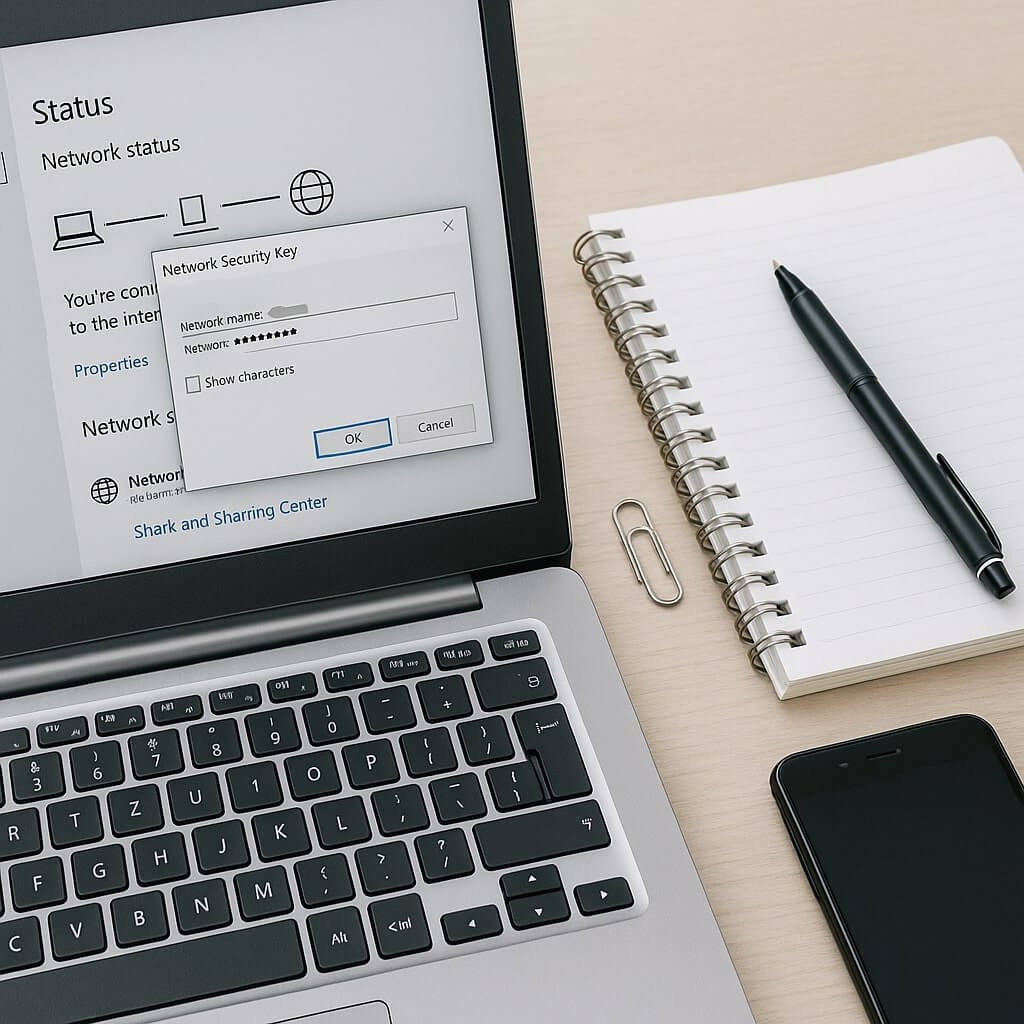

Knowing your network security key is essential for secure connectivity, yet many overlook how to access it swiftly. Whether you’re on a Windows PC, Mac, or mobile device, there are efficient methods to retrieve this information. You can also adjust settings directly through your router. Understanding these techniques can save you frustration. But what’s the best approach for your specific device? Let’s explore the options available to you.
Key Takeaways
- Use Command Prompt on Windows or Keychain Access on macOS to quickly retrieve your network security key.
- Access Wi-Fi settings on mobile devices to view saved networks and their security keys easily.
- Log into your router’s settings via its IP address to find or modify the security key.
- Regularly check and manage saved networks to ensure you have the correct and updated security keys.
- Consider third-party software tools for quick recovery of network security keys if needed.
Understanding Your Network Security Key
Understanding your network security key is essential for maintaining a secure connection to your wireless network. This key serves as a password, protecting your network from unauthorized access and guaranteeing that only authorized devices can connect.
The key importance of this security measure can’t be overstated; without it, your data is vulnerable to interception and manipulation. When you connect to your network, the key encrypts your data, safeguarding it from potential threats.
Regularly updating this key can enhance your network security further, as it minimizes the risks associated with compromised credentials. Always make certain you store your network security key securely, preventing unauthorized individuals from gaining access to your network and potentially compromising your sensitive information.
Locating the Key on Windows Devices
To locate your network security key on Windows devices, you can utilize the Command Prompt or access the network settings directly.
Each method provides a straightforward way to reveal your key for easier connectivity.
Understanding these processes guarantees you can quickly access your network credentials when needed.
Using Command Prompt
If you need to quickly retrieve your network security key on a Windows device, using the Command Prompt is a straightforward solution. First, you’ll want to familiarize yourself with command prompt basics. Open the Command Prompt by typing “cmd” in the search bar. Next, use the following command to find your key:
“`bash
netsh wlan show profile name=”YourNetworkName” key=clear
“`
Replace “YourNetworkName” with your actual Wi-Fi network’s name. Look for the “Key Content” line to see your security key. Below is a simplified overview of relevant command prompt commands:
| Command | Purpose | Example |
|---|---|---|
| netsh wlan show profile | Displays Wi-Fi profiles | netsh wlan show profile |
| key=clear | Reveals the security key | key=clear |
| find “Key Content” | Extracts the key from the output | find “Key Content” |
Accessing Network Settings
After retrieving your network security key via Command Prompt, you might prefer a more graphical approach. Accessing your network settings provides a straightforward way to locate this key.
Here’s a quick overview of the steps:
- Open the Control Panel and click on Network and Internet.
- Select Network and Sharing Center, then click on your active connection.
- In the connection status window, click Wireless Properties and navigate to the Security tab.
Understanding your network settings overview is essential for maintaining network security importance.
This method not only simplifies the process but also enhances your ability to manage your network effectively. By knowing your network security key, you guarantee a secure connection, protecting your data from unauthorized access.
Finding the Key on Macos
To find your network security key on macOS, you’ll primarily use Keychain Access, where passwords are securely stored.
Alternatively, terminal commands can provide direct access to your Wi-Fi credentials.
Understanding these methods will streamline your process in retrieving the necessary information effectively.
Accessing Keychain Access
While exploring your network settings on macOS, you can easily locate your network security key using Keychain Access. This built-in utility enhances keychain security and simplifies managing passwords.
Here’s how you can access it:
- Open Keychain Access from the Applications > Utilities folder.
- In the search bar, type your Wi-Fi network name.
- Double-click on the result to reveal the password.
Viewing Wi-Fi Password
If you need to view your Wi-Fi password on macOS, the process is straightforward and can be done using Keychain Access.
First, open Keychain Access from your Applications folder. In the search bar, type the name of your Wi-Fi network. Once located, double-click on the network entry.
A new window will appear; check the box labeled “Show password.” You’ll need to authenticate with your macOS administrator credentials. After entering your password, the Wi-Fi password will be revealed.
This method is essential for password recovery and guarantees you maintain Wi-Fi security by allowing you to retrieve forgotten credentials. Following these steps, you can efficiently manage your network access without unnecessary complications.
Using Terminal Commands
How can you quickly find your Wi-Fi network security key using Terminal commands on macOS? Utilizing terminal shortcuts enhances command efficiency, allowing you to retrieve your password in seconds. Follow these steps:
- Open Terminal from your Applications folder.
- Type the command: `security find-generic-password -ga “YourWiFiName” | grep “password:”`
- Replace “YourWiFiName” with your actual network name.
After executing the command, you’ll be prompted to enter your macOS password. Once completed, your Wi-Fi security key will be displayed. This method is particularly useful for tech-savvy users who prefer the command line, ensuring fast access to critical information without traversing through multiple menus. Mastering these commands can greatly streamline your workflow.
Accessing Your Router’s Settings
To access your router’s settings, you’ll need to connect to your network and enter the router’s IP address in a web browser. Common IP addresses include 192.168.1.1 or 192.168.0.1.
Once you’ve entered the IP address, you’ll be prompted for a router login. This is typically the default username and password, which can often be found on the router itself or in its manual.
After entering the router’s IP address, you’ll need to provide the default login credentials found on the device or in its manual.
After logging in, navigate to the security settings section. Here, you can view and modify various security parameters, including your network security key.
It’s essential to guarantee your settings align with best security practices to protect your network from unauthorized access. Always remember to save any changes before exiting.
Using Command Prompt for Windows
Using the Command Prompt in Windows provides a straightforward method for retrieving your network security key without needing to access your router’s settings.
Here’s how you can do it quickly by utilizing command prompt basics:
- Open the Command Prompt by typing “cmd” in the Start menu search.
- Enter the command: `netsh wlan show profile name=”YourNetworkName” key=clear`.
- Look for the “Key Content” line to find your network security key.
This process leverages network security commands to display your key clearly.
Make sure to replace “YourNetworkName” with the actual name of your Wi-Fi network.
This method is efficient and eliminates the hassle of maneuvering through router settings.
Checking Your Mobile Device Settings
To check your network security key on a mobile device, start by accessing your Wi-Fi settings.
From there, you can view saved networks, which typically include the security keys associated with each connection.
This process allows you to quickly retrieve the information you need without complexity.
Accessing Wi-Fi Settings
How can you quickly access your Wi-Fi settings on a mobile device?
It’s essential for managing connections and choosing networks efficiently.
Follow these steps to streamline the process:
- Open Settings: Locate and tap the Settings app on your device.
- Select Network & Internet: Navigate to the Network & Internet section to view Wi-Fi options.
- Access Wi-Fi Settings: Tap on Wi-Fi to see available networks and manage your connections.
Viewing Saved Networks
After accessing your Wi-Fi settings, you can easily view the networks your device has saved. This feature allows you to quickly identify any potential issues when troubleshooting connection issues.
Simply navigate to the “Saved Networks” section, where you’ll find a list of previously connected networks. Here, you can check the network security keys, ensuring they’re up-to-date for secure access.
If you’re managing guest access, you can also review or delete any outdated networks to maintain security. This helps prevent unauthorized access, ensuring your device remains protected.
Regularly reviewing your saved networks not only enhances your connectivity but also fortifies your overall network security posture. Stay proactive to optimize both performance and safety.
Recovering the Key From a Saved Network
While you may have connected to a Wi-Fi network in the past, recovering the network security key from saved settings is a straightforward process.
Here’s how you can quickly retrieve it:
- Access Network Settings: Navigate to your device’s network settings to find saved networks.
- View Properties: Select the network you’re interested in and view its properties.
- Reveal Password: Look for an option to display the network security key or password.
Using Third-Party Software Tools
If retrieving the network security key from saved settings isn’t an option, third-party software tools can provide a reliable alternative.
These tools are designed to scan your network and extract security keys quickly. Many of them offer user-friendly interfaces, allowing you to navigate easily through their features.
Look for reputable third-party tools that have strong reviews and are known for maintaining network security. Some tools not only recover your key but also provide insights into potential vulnerabilities in your network.
Always guarantee that the software you choose is from a trusted source to avoid compromising your network security.
With the right tool, you can efficiently regain access to your network without the hassle of complex procedures.
Resetting Your Router for a New Key
When you’re unable to recover your network security key through existing methods, resetting your router can be an effective solution. A router reset restores the device to its factory settings, allowing you to establish a new network security key.
If recovering your network security key fails, consider resetting your router to restore factory settings and create a new key.
Here’s what you should do:
- Locate the reset button on your router, usually found on the back.
- Press and hold it for about 10 seconds until the lights blink.
- Reconfigure your router settings through the web interface.
Keep in mind that a router reset will erase all your personalized settings, including Wi-Fi name and passwords.
After the reset, make sure to set up your network again and create a strong, memorable security key.
Tips for Creating a Strong Network Security Key
Creating a strong network security key is essential for safeguarding your wireless network against unauthorized access. Start by using strong passwords that combine upper and lower case letters, numbers, and special characters, aiming for at least 12 characters. Avoid common phrases or easily guessable information like birthdays.
Next, consider using a passphrase made up of random words; this can enhance memorability while still being complex. Implement network encryption, such as WPA3, to add an additional layer of protection.
Regularly updating your key, ideally every few months, can also help mitigate risks. Finally, avoid sharing your key unless absolutely necessary, and make certain that only trusted devices are connected to your network to maintain security integrity.
Conclusion
In essence, quickly finding your network security key involves various methods tailored to your device. Whether you’re using Windows, macOS, or mobile, accessing settings or utilizing command prompts can streamline the process. If those options fall short, your router’s settings offer a direct approach. Remember, having a strong network security key is essential for safeguarding your connection. By following these steps, you can efficiently retrieve or reset your key, ensuring ideal security for your network.