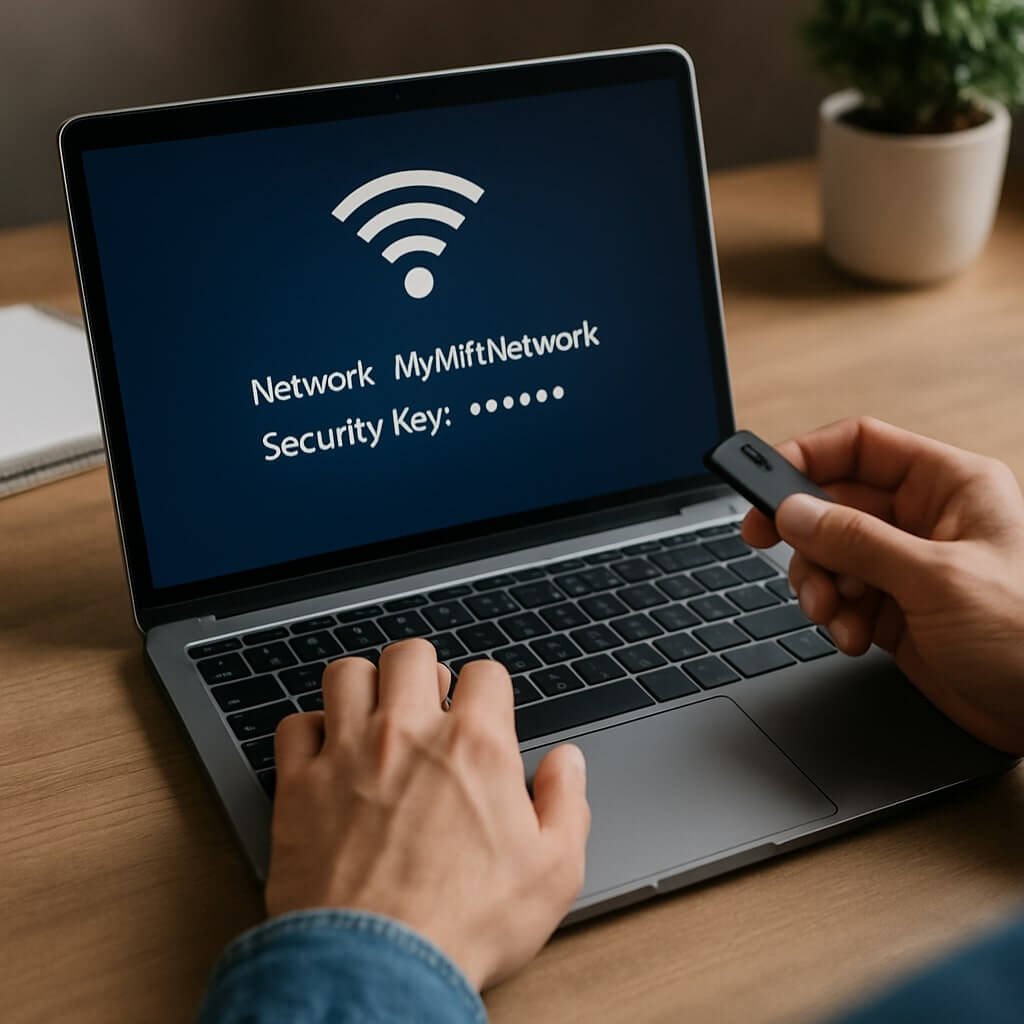
If you’ve ever needed to access your network security key but weren’t sure how, you’re not alone. Many users overlook the simple steps required to retrieve this important piece of information. By following a systematic approach through your Control Panel, you can easily reveal your Wi-Fi security key. However, understanding the nuances of this process is fundamental to guarantee you maintain your network’s integrity. Let’s explore the necessary steps to access this essential information efficiently.
Key Takeaways
- Access your network settings through the Control Panel by entering your router’s IP address in a web browser.
- Navigate to the “Network and Sharing Center” to view your active network connections.
- Right-click on your network connection and select “Properties” to open its settings.
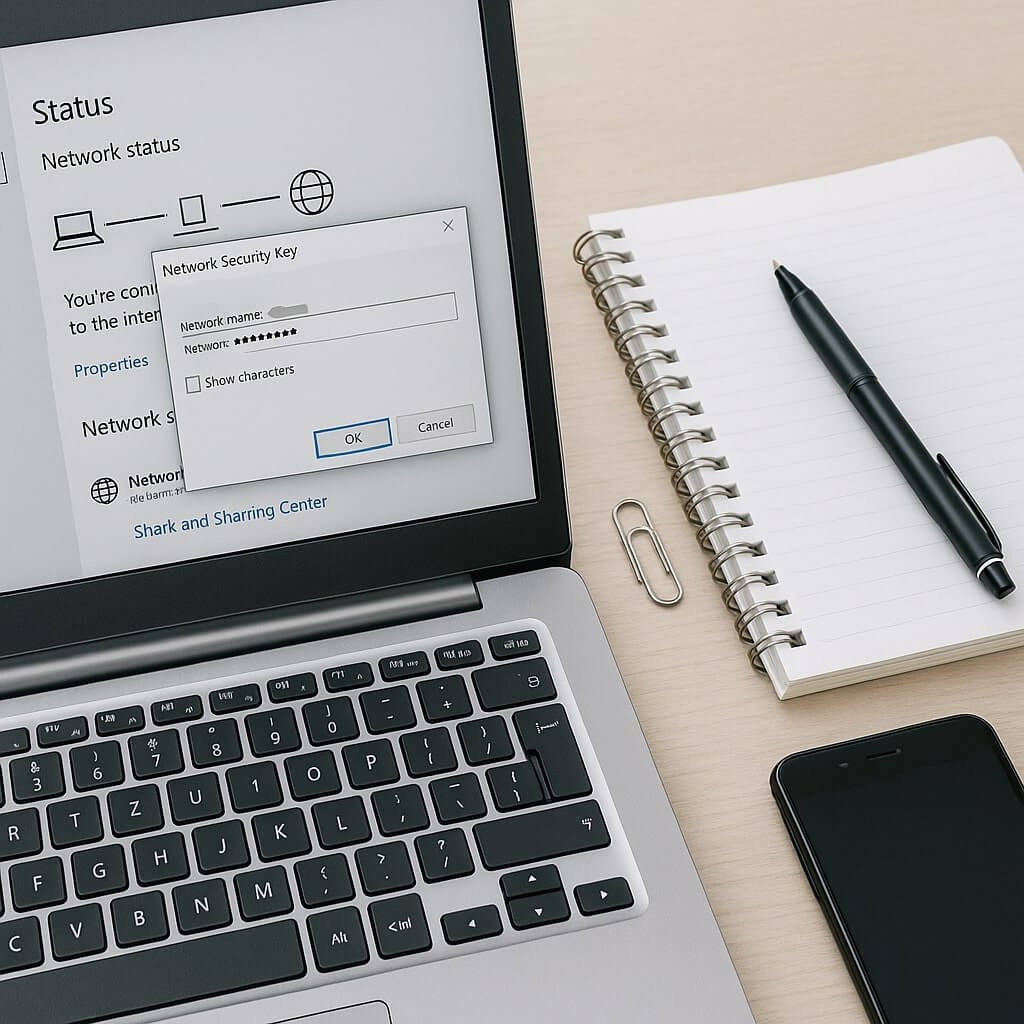
- Go to the Security tab and check the “Show characters” box to reveal your network security key.
- Record the network security key accurately for secure connections and consider updating it regularly.
Access Your Control Panel
To enhance your network security, accessing your control panel is fundamental. The control panel features essential settings that allow you to manage your network effectively.
Start by identifying the appropriate access methods; typically, you can connect via a web browser using your router’s IP address. Once logged in, explore the interface for options like firewall settings, device management, and security protocols. Each feature plays an important role in reinforcing your network’s defenses against potential threats.
Regularly reviewing these settings guarantees you maintain ideal security. Don’t overlook the importance of updating firmware and passwords within the control panel, as these steps notably mitigate vulnerabilities.
Navigate to Network and Internet
Once you’ve accessed your control panel, the next step is steering to the “Network and Internet” section, which serves as a central hub for managing your connection settings and monitoring network performance.
Within this area, you can find vital details regarding your Wi Fi connections, including available networks and their respective statuses. This section allows you to adjust Internet settings, enabling you to optimize your connection for better speed and stability.
You can also troubleshoot any connectivity issues that may arise. By carefully reviewing the options presented, you can guarantee your network operates efficiently and securely.
This foundational step is essential before delving deeper into network configurations, particularly when seeking your network security key.
Open Network and Sharing Center
After maneuvering to the “Network and Internet” section, you’ll want to open the “Network and Sharing Center,” where you can access detailed information about your connections.
This centralized hub provides essential insights for network troubleshooting and helps you identify potential connection issues.
Once you’re in the center, you’ll see your active networks, available networks, and shared resources. Each connection displays its status and type, giving you an extensive view of your network environment.
If you’re experiencing connectivity problems, this is the ideal place to start diagnosing them. You can also access advanced settings to further refine your network configuration.
View Your Active Networks
To enhance your network security, it’s essential to identify your active connections.
By accessing network settings, you can monitor which devices are currently connected and assess their security status.
This proactive approach allows you to take necessary actions to protect your network from potential threats.
Identify Active Connections
Identifying active connections on your network is essential for maintaining security and optimizing performance. Start by checking all active devices connected to your network. This includes computers, smartphones, tablets, and any IoT devices.
Each device may utilize different connection types, such as Wi-Fi, Ethernet, or Bluetooth. Utilize your router’s administrative interface or network monitoring tools to see a thorough list of active connections.
Pay attention to the IP addresses and MAC addresses associated with each device. This data helps you identify unauthorized connections, allowing you to take appropriate security measures.
Additionally, understanding the connection types can provide insights into potential vulnerabilities within your network. Regularly reviewing active connections guarantees you maintain a secure and efficient network environment.
Access Network Settings
Accessing your network settings is essential for gaining insights into your active networks and ensuring ideal security.
By examining your network configuration, you can identify potential vulnerabilities and adjust your router settings accordingly.
Here’s how to access your network settings effectively:
- Open Network Connections: Navigate to your device’s network settings through the control panel or system preferences.
- Select Active Network: Click on the current network you’re connected to for detailed information.
- View Configuration Details: Access the properties or status to review your IP address, subnet mask, and gateway.
Select Your Wi-Fi Network
How do you guarantee that your Wi-Fi network is both accessible and secure? Start by selecting the correct Wi-Fi network from the available options.
Ascertain you’re connected to your intended network, as connecting to a public or unsecured network can compromise both your security and network connectivity. If you encounter issues, engage in Wi-Fi troubleshooting to identify and resolve any connectivity problems.
Ensure you’re connected to your intended network, as public or unsecured connections can jeopardize your security and connectivity.
Check your device settings for the correct SSID (Service Set Identifier) and confirm that you have the right password. After selecting your network, monitor for any unexpected disconnections or performance issues, as they may indicate a larger problem.
Always prioritize connecting to a secure network to protect your data and maintain a stable connection.
Open Wireless Properties
After ensuring you’re connected to the correct Wi-Fi network, the next step involves managing your wireless properties effectively.
Accessing these properties is essential for addressing any potential connection issues and enhancing your wireless security.
Here’s how to do it:
- Right-click on the Wi-Fi icon in your system tray.
- Select “Open Network & Internet settings.”
- Click on “Change adapter options,” then right-click on your Wi-Fi connection and choose “Properties.”
Go to the Security Tab
Once you open the wireless properties, go to the Security tab to access essential network settings.
Here, you can review various security options that protect your connection, including encryption methods.
Additionally, this section allows you to view your password information, ensuring you have the correct credentials for secure access.
Locate Network Settings
Where can you find the essential network settings necessary for securing your connection? To strengthen your network security, you’ll need to locate the settings where these configurations reside.
Follow these steps to access your network settings effectively:
- Open the Control Panel – Navigate through your system settings to find the Control Panel, which houses various network connection types.
- Select Network and Internet – Click on this option to explore specific network settings.
- Access Network and Sharing Center – Here, you can troubleshoot your network and examine detailed settings.
Utilizing these network troubleshooting tips will help you identify vulnerabilities in your setup and enhance your overall security posture.
Understanding these elements is vital for maintaining a secure and reliable connection.
Access Security Options
To effectively enhance your network’s security, it’s vital to access the Security tab within your network settings. This section provides significant insights into the security protocols your network employs.
Once you navigate to the Security tab, you’ll encounter various access methods, allowing you to configure settings tailored to your security needs. It’s important to review the current encryption standards, such as WPA2 or WPA3, as these directly impact your network’s defense against unauthorized access.
Additionally, pay attention to the options for managing connected devices and user permissions. By understanding these elements, you’ll strengthen your network’s resilience and guarantee that sensitive data remains protected.
View Password Information
How can you guarantee that your network remains secure while managing your password information?
To effectively view your password details, follow these steps in the Security Tab:
- Open Network Properties: Right-click on your network connection, and select “Properties.”
- Navigate to the Security Tab: Here, you’ll find the network security key field.
- Show Characters: Check the box next to “Show characters” to reveal your password.
Show Characters Checkbox
Why does the “Show Characters” checkbox matter in network security settings?
This feature enhances security visibility by allowing you to see your network security key in its entirety. When you select the checkbox, it reveals the masked password, facilitating accurate input without the risk of typographical errors. This is vital in environments where precision is essential, such as connecting devices or troubleshooting connectivity issues.
Additionally, it helps you confirm that you’re using the correct password, especially when dealing with complex alphanumeric combinations. However, be cautious; displaying your password can expose it to prying eyes nearby. Use this feature judiciously, ensuring your environment is secure before clicking to show password.
Note Your Network Security Key
Noting your network security key is essential for maintaining secure connections across devices. This key acts as a foundational element in your network security strategy, and managing it effectively is imperative.
Here are three key steps to take into account:
- Identify the Key: Make sure you know where to find your network security key, whether it’s in your router settings or device configuration.
- Record It Accurately: Write down the key exactly as it appears, avoiding any alterations that may compromise its integrity.
- Regularly Update: Change your network security key periodically to enhance password management and reduce the risk of unauthorized access.
Securely Store Your Security Key
To guarantee the security of your network security key, consider utilizing password managers, which provide encrypted storage and easy access.
Alternatively, if you choose to write it down, make certain to place it in a secure location that minimizes the risk of unauthorized access.
Both methods require careful consideration to protect your sensitive information effectively.
Use Password Managers
Often overlooked, password managers play an essential role in securely storing your security keys and sensitive credentials.
By using a password manager, you can enjoy various benefits that enhance your online security:
- Encryption: Password managers encrypt your stored data, ensuring only you can access it.
- Automatic Filling: They automatically fill in your security keys, reducing the risk of human error during entry.
- Secure Password Storage: You can generate complex passwords and store them safely, minimizing the likelihood of password reuse.
Incorporating a password manager into your security routine can streamline your processes while greatly improving your protection against unauthorized access.
With these tools, you can confidently manage your network security keys without the fear of losing or forgetting them.
Write It Down Safely
While password managers provide a secure way to manage your credentials, there are times when you might prefer or need to have a physical record of your security keys.
In such cases, it’s essential to guarantee secure storage. Write your network security key on a piece of paper, but don’t leave it lying around. Instead, store it in a locked drawer or a safe to prevent unauthorized access.
If you opt for a digital format, consider using encrypted USB drives that offer additional password protection.
Regularly review your storage methods and update them as necessary to maintain security.
Conclusion
In summary, retrieving your network security key is a straightforward process that enhances your network management. By following these ten steps, you guarantee easy access to essential information while maintaining security. Remember to store your key securely, as it’s important for protecting your wireless network from unauthorized access. Utilizing a password manager can further safeguard this sensitive data, promoting a more organized and secure digital environment. Take control of your network security today for a safer online experience.