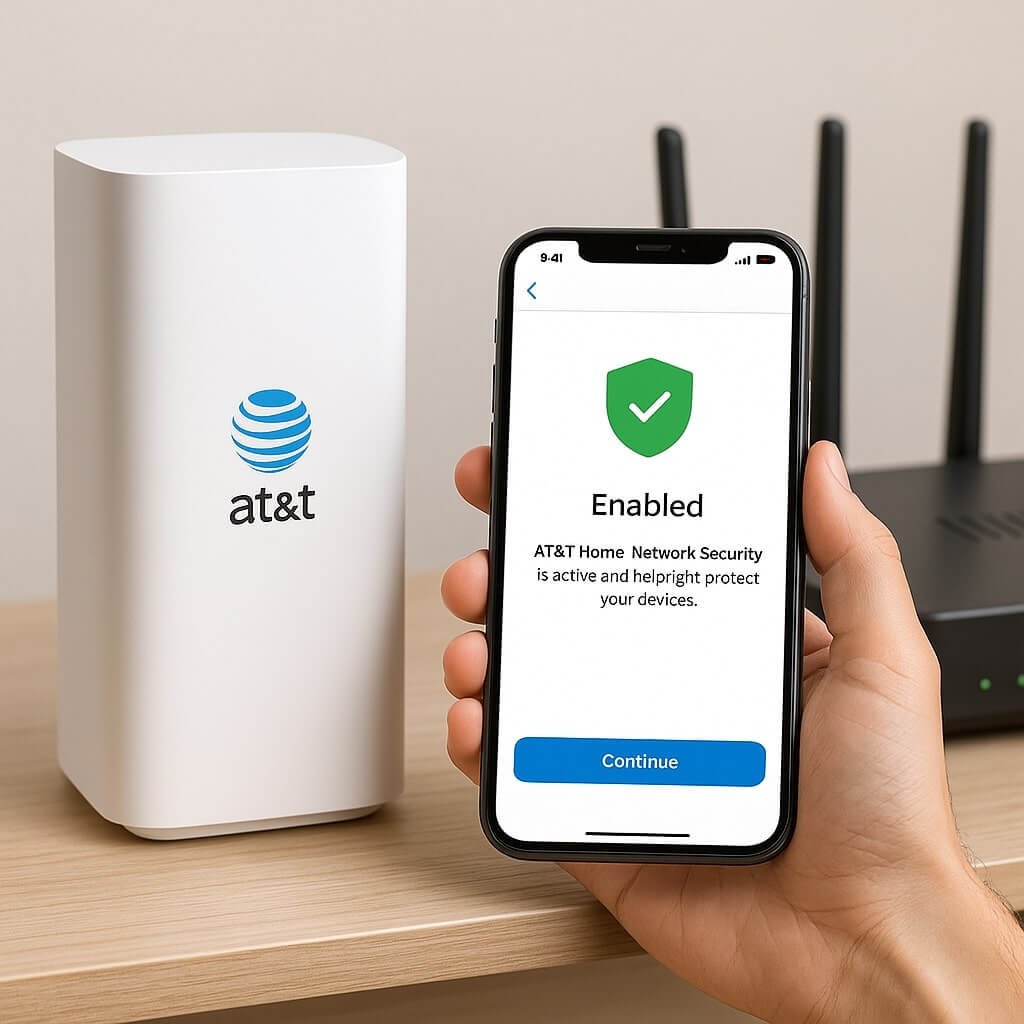
Securing your AT&T home network is vital for protecting your personal information and devices. You can easily enhance your network security by following a few straightforward steps. Start by accessing your AT&T account, where you’ll navigate to your home network settings. From there, you’ll enable essential security features and set up robust passwords. But there’s more to take into account for thorough protection. Let’s explore the steps that will fortify your home network.
Key Takeaways
- Log into your AT&T account via the website or myAT&T app to access network settings.
- Navigate to the “My AT&T” dashboard and select the “Internet” option for network management.
- Enable WPA2/WPA3 security for your Wi-Fi to enhance protection against unauthorized access.
- Activate firewall settings and set up intrusion detection to monitor suspicious activities.
- Regularly update your Wi-Fi passwords and device firmware every 3-6 months for ongoing security.
Access Your AT&T Account
To access your AT&T account, you’ll need to visit the AT&T website or use the myAT&T app on your device.
Once there, enter your login credentials, including your username and password. If you haven’t registered yet, click on the “Sign Up” option to create your account.
After logging in, you’ll have full account access, allowing you to manage your services and view your billing information.
Navigate to the billing section to review your current charges, payment history, and due dates. If you need to update any payment methods or address details, you can do that here as well.
Make certain your information is accurate to avoid any service interruptions or billing issues.
Navigate to the Home Network Security Settings
Once you’re logged into your AT&T account, finding the Home Network Security settings is straightforward.
Start by directing yourself to the “My AT&T” dashboard. From there, select “Internet” to access your home network management options.
Begin at the “My AT&T” dashboard and select “Internet” to manage your home network settings.
You’ll see a section labeled “Home Network” or “Network Security.” Click on this to enter the security settings area.
Here, you can view your current security status and make necessary adjustments. Look for options to customize your network security preferences, such as enabling firewalls or setting up alerts.
Remember, keeping your home network secure is essential for protecting your devices and personal information.
Once you’ve located the security settings, you’re ready to proceed with enabling necessary features for maximum protection.
Enable Security Features
Now that you’ve accessed the Home Network Security settings, it’s time to enable the security features that will protect your network.
Follow these steps to set up essential security protocols and adjust your firewall settings:
- Enable WPA2/WPA3 Security: Choose the latest security protocol for your Wi-Fi to enhance protection.
- Activate Firewall Settings: Make sure your firewall is turned on to block unauthorized access.
- Set Up Intrusion Detection: Enable this feature to monitor and alert you of suspicious activity on your network.
- Configure Guest Network: If available, set up a separate guest network to keep your main network secure.
Taking these actions will greatly strengthen your home network security, keeping your devices safer from potential threats.
Set Up Network Passwords
Setting up strong network passwords is essential for protecting your home network.
You’ll want to create unique passwords for each device and regularly update them to enhance security.
Importance of Strong Passwords
Security is paramount when it comes to protecting your home network, and strong passwords play an essential role in that defense.
To guarantee effective password management and enhance password complexity, follow these guidelines:
- Use at least 12 characters: Longer passwords are harder to crack.
- Combine letters, numbers, and symbols: This increases complexity and security.
- Avoid personal information: Don’t use easily accessible details like birthdays or names.
- Change passwords regularly: Frequent updates reduce the risk of unauthorized access.
Creating Unique Passwords
Creating unique passwords is essential for safeguarding your home network against unauthorized access. Start by ensuring each password you create has high password complexity, combining uppercase letters, lowercase letters, numbers, and special characters.
Avoid using easily guessed information, like birthdays or common words. Consider using a password manager to generate and store complex passwords securely. This tool can help you create unique passwords for every device and service, minimizing the risk of a breach.
Regularly review and change these passwords, especially for devices connected to your network. By following these steps, you enhance your home network security and protect your personal information from potential threats.
Make password security a priority; it’s one of the simplest ways to safeguard your digital life.
Regularly Updating Passwords
To maintain a robust defense against cyber threats, regularly updating your network passwords is essential. This practice not only enhances password strength but also improves your overall password management strategy.
Consider the following steps to guarantee your passwords remain secure:
- Change passwords every three to six months.
- Use complex combinations of letters, numbers, and symbols.
- Avoid reusing passwords across different accounts.
- Enable two-factor authentication where possible.
Update Your Wi-Fi Settings
Updating your Wi-Fi settings is essential for optimizing your AT&T Home Network Security. First, log into your router’s admin panel using a web browser.
Navigate to the Wi-Fi settings section. Here, you should enable WPA3 or WPA2 Wi-Fi encryption to secure your network against unauthorized access. Next, choose a strong, unique password to further enhance security.
Adjust the network visibility settings by disabling the SSID broadcast if you want to make your network less visible to outsiders. This adds an extra layer of security, as only those who know your network name can attempt to connect.
Finally, remember to save your changes and reboot your router to apply the new settings effectively.
Monitor Connected Devices
As you enhance your AT&T Home Network Security, monitoring connected devices is essential for identifying any unauthorized access.
Effective device management guarantees that only authorized devices remain on your network.
Follow these steps for efficient security monitoring:
- Access your AT&T home network settings via the app or web portal.
- Navigate to the “Connected Devices” section to view all devices currently linked to your network.
- Regularly check device names and MAC addresses to recognize any unfamiliar devices.
- Remove any unauthorized devices immediately to maintain security.
Regularly Update Security Settings
While maintaining a secure home network, it is crucial to regularly update your security settings to protect against evolving threats. Start by reviewing your password management practices, ensuring you’re using strong, unique passwords for all devices. Schedule periodic security audits to identify vulnerabilities and assess the effectiveness of your current settings.
Here’s a quick reference table to help you stay on track:
| Task | Frequency |
|---|---|
| Change Wi-Fi password | Every 3-6 months |
| Update device firmware | Every 3 months |
| Conduct security audits | Quarterly |
| Review firewall settings | Monthly |
Conclusion
By following these seven steps, you can markedly enhance your AT&T home network security. Access your account, enable vital security features, and set up strong passwords to protect your Wi-Fi. Regularly monitor connected devices and update your security settings to stay ahead of potential threats. Taking these proactive measures guarantees a safer online experience for you and your family, helping to safeguard your personal information and digital privacy. Don’t wait—secure your network today!